
Model Context Protocol
Connect your AI to your own training log.
MCP is the standard way an assistant reaches a service on your behalf. Point any MCP client at the address below and sign in once. From then on it can log meals, record sets, and read your history the same way the app does, because it is calling the same 87 capabilities.
Leave the app open on Trends while you tell your assistant what you lifted, and watch the bench chart move as it writes the sets.
Server address
https://mcp.kinevolab.com
Streamable HTTP. There is nothing to install and nothing to run locally.
Or have your assistant do it
It knows its own settings better than a page written months ago does, and it knows which client you are talking to right now. Paste this into it and follow along.
I want to connect an MCP server to you.

Server address: https://mcp.kinevolab.com
Transport: Streamable HTTP. It supports OAuth sign-in through the browser, and
bearer tokens for clients that cannot do that.

Work out which client I am talking to you through right now, and tell me exactly
where that address goes and what to click. If it needs a config file, tell me
where the file lives on my machine and show me the whole file with the server
added. Then have me confirm the tools showed up before we call it done.
Worth knowing before you start: this is the one thing your assistant cannot check its own work on, because until the connection exists it cannot call anything to see whether it worked. Ask it to have you confirm the tools appeared. If it invents a menu that is not there, the instructions below are the real ones.
Or do it yourself
You need an account either way. The connection signs in as you and only ever sees your own data. Create one here if you have not yet.
The protocol answer. It works in every client, including the two on the other tabs, and nothing here depends on somebody else’s menu staying where it is.
If your client can open a browser
Give it the address and sign in
Paste the server address wherever the client asks for an MCP server URL. It will send you to a Kinevolab sign-in page, you approve, and it holds the session from then on. No token to copy and nothing to rotate by hand.
The server registers clients on the fly, so there is no key to request and nothing to set up here first.
If it cannot, or you would rather not
Use an access token
Create a personal access token in the app and send it as a bearer header. Most clients read a config file shaped like this:
{
  "mcpServers": {
    "kinevolab": {
      "type": "http",
      "url": "https://mcp.kinevolab.com",
      "headers": {
        "Authorization": "Bearer kl_pat_…"
      }
    }
  }
}
Field names vary a little between clients. The parts that matter are the URL, an HTTP transport, and that header.
Writing the calls yourself
It is plain HTTP
Streamable HTTP at the address above, with Authorization: Bearer on every request. Any MCP SDK will talk to it, and so will anything that can POST JSON.
Where the token comes from
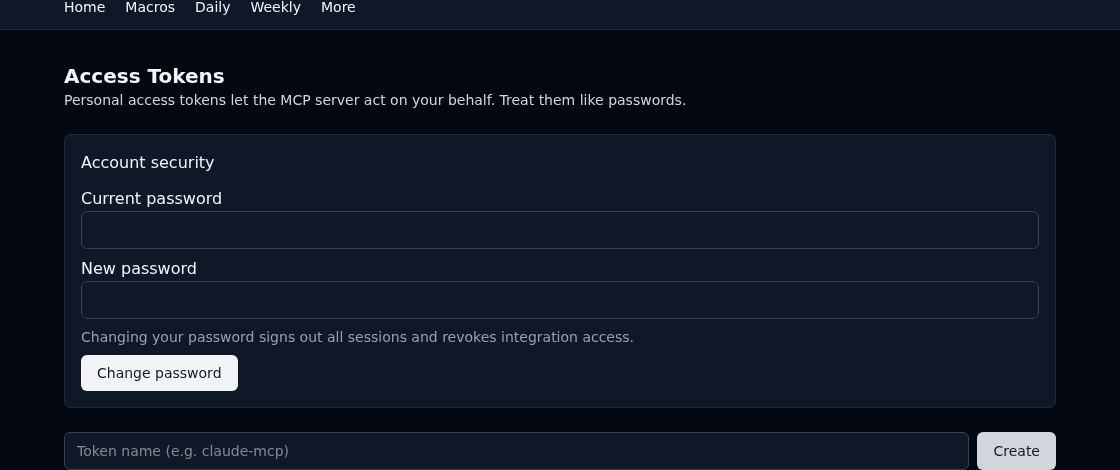
Account menu, then Access Tokens.
Name it after the client you are connecting so you can tell them apart later. The token is shown once and stored only as a hash, so copy it before you close the page. If you lose it, revoke that one and make another.
A token acts as you. It can read and write everything in your log, so treat it like a password, and revoke it from the same page the moment you stop using that client.
Things to ask it
Taken straight from the tool definitions the server publishes, so this list cannot go stale.
- “Log a 600 calorie lunch with 45g protein for today”
- “Add a post-run shake: 460 cal, nutrients: [{ nutrient: 'Protein', amount: 41 }, { nutrient: 'Carbs', amount: 51 }]”
- “Record dinner at 700 calories with 1200mg sodium”
- “What did I eat on 2026-07-20?”
- “Show my meals from 2026-07-14 to 2026-07-20”
- “What have I been eating for breakfast this month?”
- “Show me everything I have logged recently”
- “Change that lunch to 700 calories”
What it can do once connected
Every one of these is also a page in the app. That is the whole design: one definition, two front doors.
System
- Ping · Liveness check that echoes a message and the server timestamp.
- Who am I · Returns the profile of the currently authenticated user.
Nutrition
- Log a meal · Record a meal and what it contained against a date.
- Meals · List logged meals for a day, a date range, or all time.
- Edit meal · Change any field of a logged meal.
- Delete meal · Remove a logged meal.
- Daily macros · A day's calorie and macro totals, summed from logged meals.
- Nutrients · List your nutrients.
- Add a nutrient · Create a new nutrient.
- Edit nutrient · Change an existing nutrient.
- Delete nutrient · Remove a nutrient nothing has used yet.
Daily
- Record a day · Save the day's weight, sleep, resting heart rate, and what kind of day it was.
- Import days · Write a stretch of training history — logs, runs and workouts — in one call.
- Daily log · List recorded days, newest first.
- Day summary · Everything about one day: measurements, macro totals, runs, workouts, and the 7-day weight trend.
- Every day at a glance · One row per day: weight, macros, mileage, and workouts together.
Runs
- Log a run · Record one run: distance, average heart rate, pace, and duration.
- Runs · List logged runs for a day or a date range.
- Edit run · Change any field of a logged run.
- Delete run · Remove a logged run.
Workouts
- Log a workout · Record a workout by title, with optional exercises, sets, reps, and weight.
- Workouts · List logged workouts, with their exercises, for a day or a date range.
- Edit workout · Change a workout’s title, notes, date, or its whole exercise list.
- Delete workout · Remove a logged workout and its exercises.
- Exercises · List your exercises.
- Add an exercise · Create a new exercise.
- Rename exercise · Change an existing exercise.
- Delete exercise · Remove an exercise nothing has used yet.
- Exercise stats · How often each movement was trained over a window, and the heaviest it went.
- Exercise trend · One movement over time: heaviest set and total volume per day.
- Strength goals · Every movement you are working towards a number on.
- Set a strength goal · Target a weight on one movement by a date.
- Delete a strength goal · Stop tracking a movement against a number.
Weekly
- Weekly check-in · Record the Sunday check-in: measurements and adherence.
- Check-in history · List weekly check-ins, most recent first.
- Week summary · The week’s check-in alongside mileage, workouts, and weight derived from the week’s records.
- Every week at a glance · One row per week: mileage, workouts, weight, adherence, and measurements.
- Measurements · List your measurements.
- Add a measurement · Create a new measurement.
- Edit measurement · Change an existing measurement.
- Delete measurement · Remove a measurement and the logged values that use it.
Body
- Log pace test · Record a 20-minute pace test held at 150 bpm.
- Pace tests · List recorded pace tests, most recent first.
- Delete pace test · Remove a recorded pace test.
- Log a body scan · Record official body-composition readings from a scan: InBody, DEXA, a smart scale, whatever you use.
- Body scans · List body-composition scans, most recent first.
- Delete body scan · Remove a recorded body-composition scan.
- Latest measurements · The two most recent body scans and pace tests, for comparison.
Targets
- Phases · List your phases.
- Add a phase · Create a new phase.
- Edit phase · Change an existing phase.
- Delete phase · Remove a phase and the targets that use it.
- Day types · List your day types.
- Add a day type · Create a new day type.
- Rename day type · Change an existing day type.
- Delete day type · Remove a day type and the targets and planned days that use it.
- Set targets · Define the macro targets for a phase and day type.
- Program targets · List the macro targets for every phase and day type.
- Delete targets · Remove the targets for a phase and day type.
- Targets for a day · Look up the macro targets that apply on a given date.
- Set training targets · Define the weekly training volume targeted for a phase.
- Training targets · List the weekly training volume targeted for every phase.
- Set up an account · Creates a phase, its day types, their targets and the week’s volume in one transaction.
Planning
- Plan days · Set what kind of day each date is meant to be, with optional planned mileage.
- Planned days · List the days planned in a window, with their day type and planned mileage.
- Clear a planned day · Remove the plan for one date.
- Races · Every race on the calendar, soonest first.
- Save a race · Add a race you are training for, or record how one went.
- Delete a race · Take a race off the calendar.
- Race progress · Each race with the running actually done towards it.
Plans
- Plans · List your plan documents.
- Add a plan · Start a new plan document.
- Read a plan · Read a plan document, at its current version or any earlier one.
- Update a plan · Save a new version of a plan document.
- Rename a plan · Change a plan’s title.
- Delete a plan · Remove a plan and its history.
- Plan history · List a plan’s versions, newest first.
- What changed in a plan · Compare two versions of a plan document.
Insights
- Day vs target · Compare what was eaten against the targets for that kind of day.
- Week in review · Mileage, weight trend, and nutrition for a week, against the week before.
- Daily briefing · Yesterday, today against target, and the week so far — in one read.
- Chart a metric · Aggregate any logged metric into days, weeks, weekdays or months.
Account
- Quick start guide · The setup guide composed from this account’s answers, and the questions still to ask.
- Save quick start answers · Records which parts of training this account cares about, and recomposes its guide.
Billing
- Subscription · Whether this account can log, until when, and why.
Feedback
- Send feedback · Tell the maintainer about a bug, an idea, or something confusing.
- My feedback · Everything you have sent, newest first, and where it stands.
Writes are writes. An assistant that can log a meal can also change one or delete it. Everything it does is scoped to your account, and nothing it touches is hidden from you: the same rows appear in the app straight away, and deleted rows are only marked, never removed. Deleting your account removes everything, for real.